When to use this guide
Use this when a guest changes the time or services, or the salon needs to reassign a technician. Before you start: open the correct appointment and check the status of each service.1
Open the appointment
Go to Bookings, find the appointment, and open its details.
2
Start editing
Select Edit. Check the customer and current details.
3
Make changes
Choose a new date or time if allowed. Add or remove services that have not started and assign a technician to each. Check the updated total duration.
4
Save and check
Select Save, wait for the result, and check the updated details.
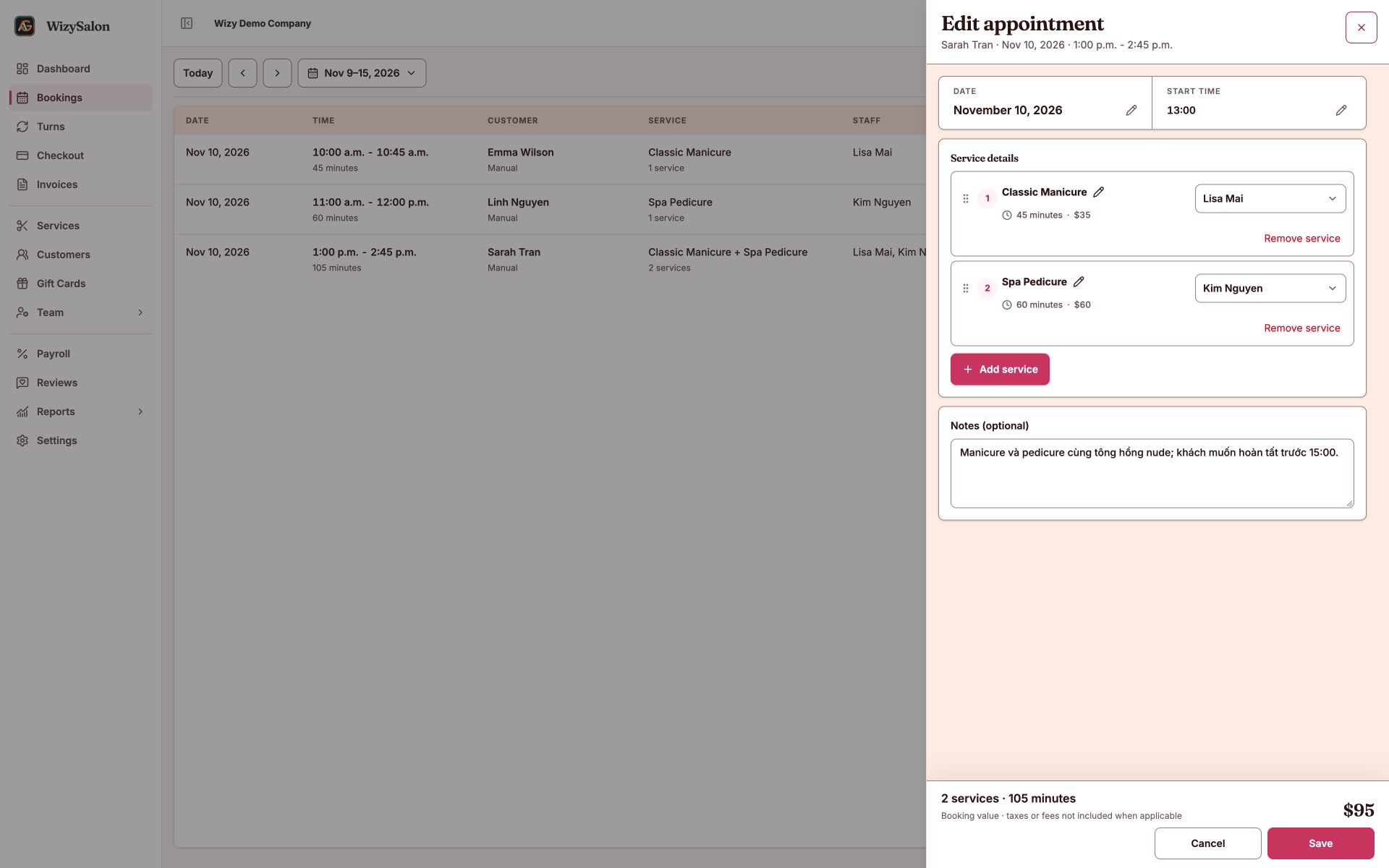
Figure 1. Editing the date, time, services, technicians, and notes.
Reschedule by dragging
If your calendar supports drag and drop, drag the appointment to the new time. Compare the current schedule, new schedule, and technician before confirming. In day view, moving between technician columns may reassign the technician.If changes cannot be saved
- Technician busy or off: choose another technician or time.
- Online hold: wait for it to expire or choose another time; it cannot be overridden.
- Changed elsewhere: review the latest data before saving again.
- Active visit: keep at least one service.