When to use this guide
Use this to review the salon schedule, check what a guest has booked, and see who is assigned. Before you start: sign in as an Owner and open the correct salon workspace.Open the appointment list
1
Open Bookings
Select Bookings in the left menu.
2
Choose a view
Select List for the table. You can also use Day, Week, or Month if available in your version.
3
Choose a date range
Check the range at the top. Use the arrows to move backward or forward, or open the date picker. Select Today to return to the current range. The List view shown below covers one week.
4
Filter by technician
Choose All technicians or one technician. Use search, status, and source filters if available.
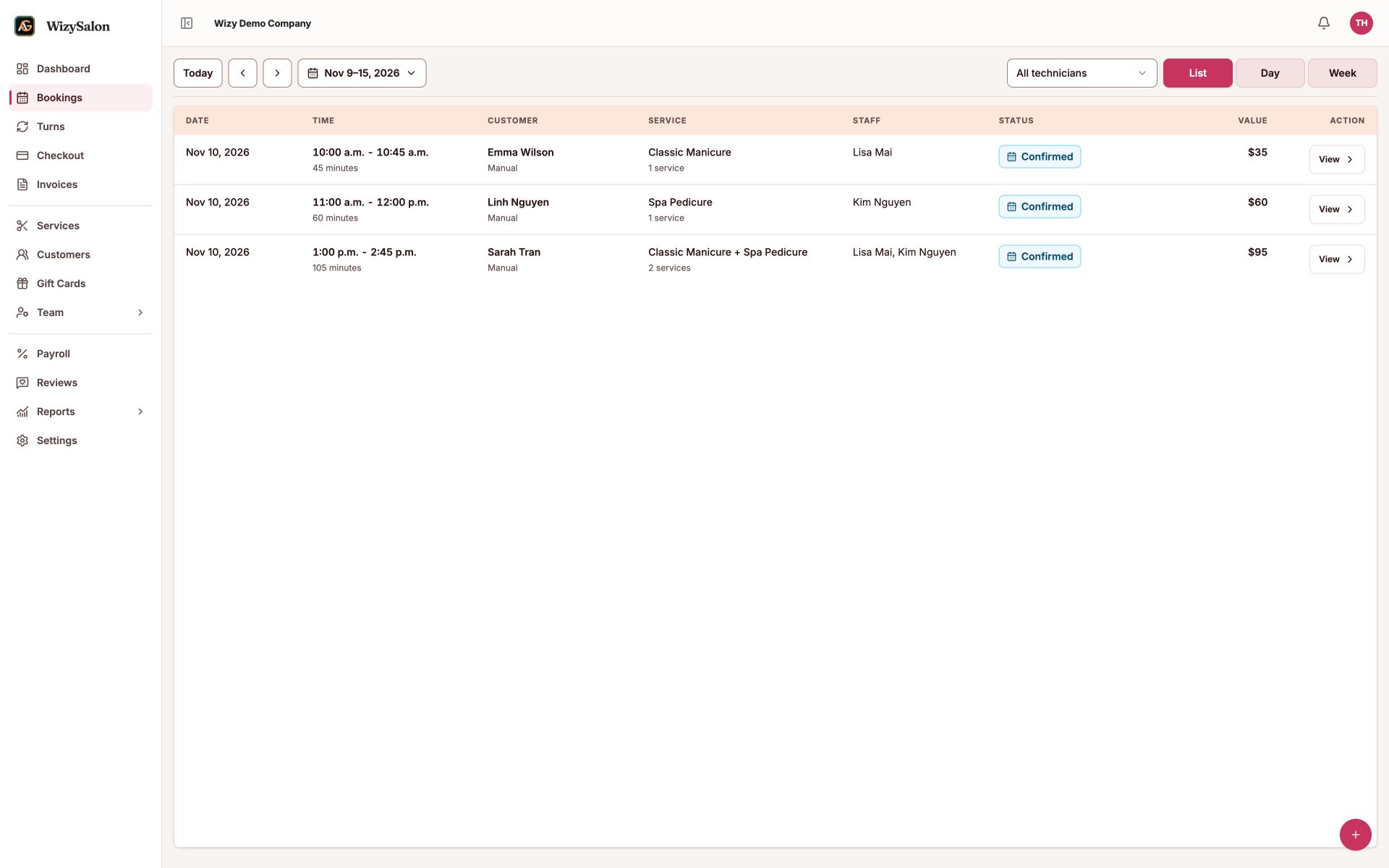
Figure 1. Three appointments with customers, services, technicians, times, and booking values.
Open and read appointment details
1
Open the appointment
Select View in its row. If the Action column is hidden, scroll the table horizontally to the right. In a calendar view, select the appointment itself.
2
Check the details
Check the customer, phone, date, time, and status. Under Service details, review each service, technician, duration, and price. Under Booking details, review the source and creation/update times.
3
Close the details
Select Close to return to the list.
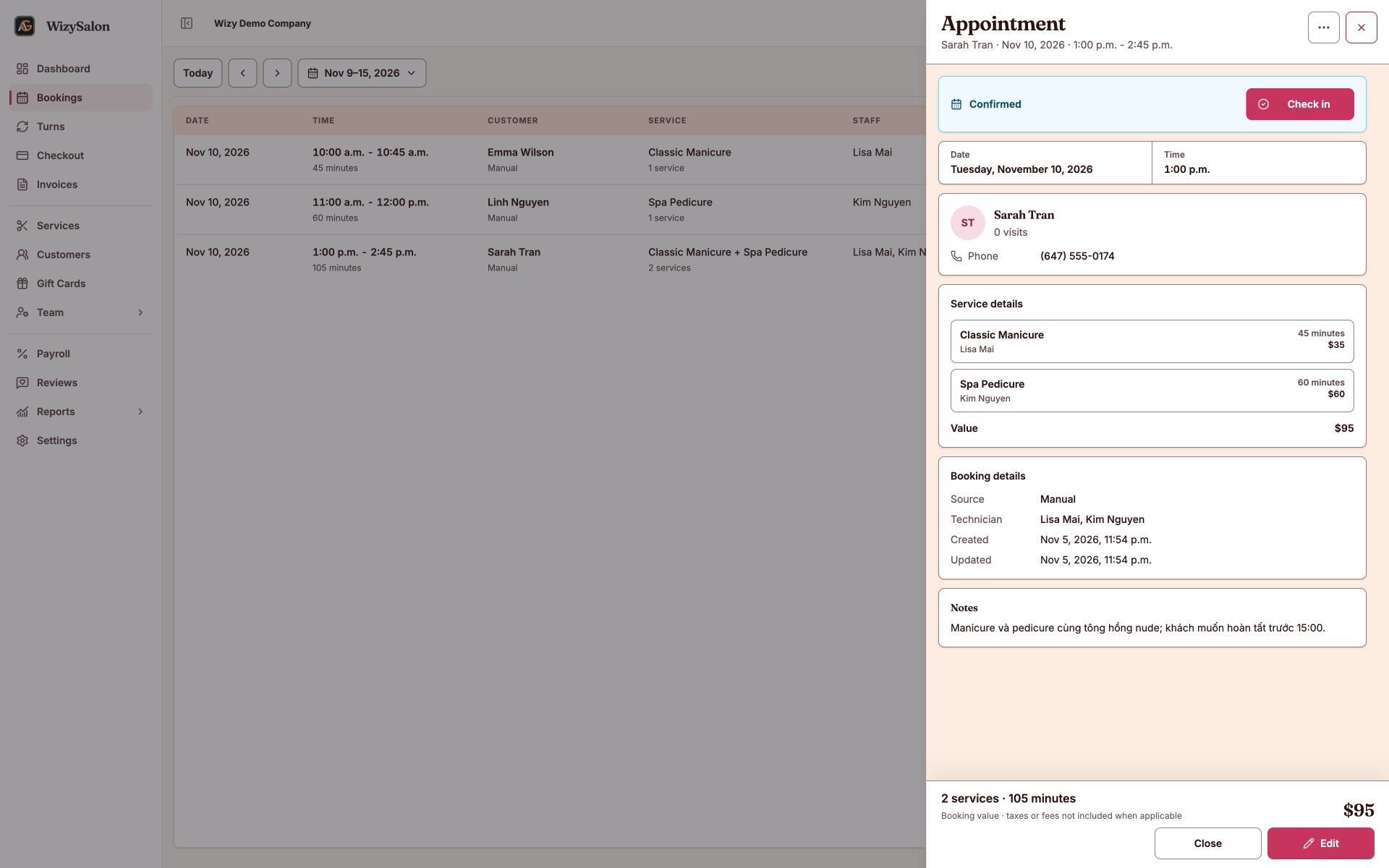
Figure 2. Sarah Tran's appointment with two services, two technicians, contact details, notes, and a total value of $95.
If you cannot find an appointment
- Choose All technicians.
- Check the range and move to the correct week.
- Clear search, status, or source filters.
- Check the salon workspace.
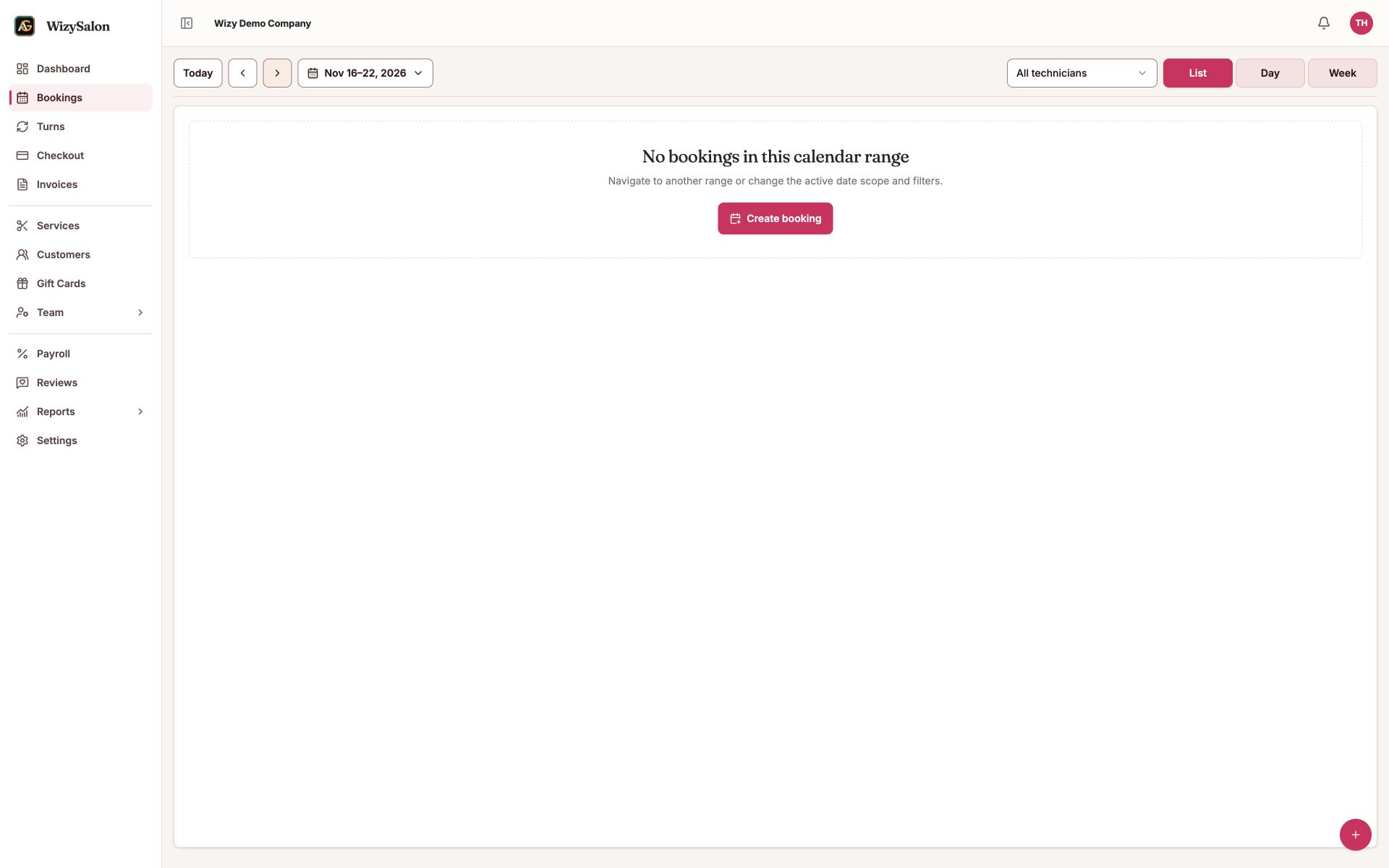
Figure 3. No appointments in the selected week; check the date range and filters.