When to use this guide
Use this when a guest calls, messages, or visits the front desk to book a future appointment. Before you start: the guest must have a customer profile and the service must be active. If the guest is missing, add their profile in Customers first.1
Open the booking form
Go to Bookings and select Create booking. In a calendar view, you can also drag over an empty slot to open a draft.
2
Choose the customer
Select the correct profile and check contact details to avoid confusing guests with similar names.
3
Choose services and technicians
Add the requested services and assign a technician to each. An appointment can contain multiple services and technicians. Check service order and total duration.
4
Choose the date and time
Select a date and start time. If a technician is busy, off, or not qualified, choose another technician or time. Check the salon time zone.
5
Review and create
Check the customer, services, technicians, date, time, and estimated value. Select Create booking and wait for the result.
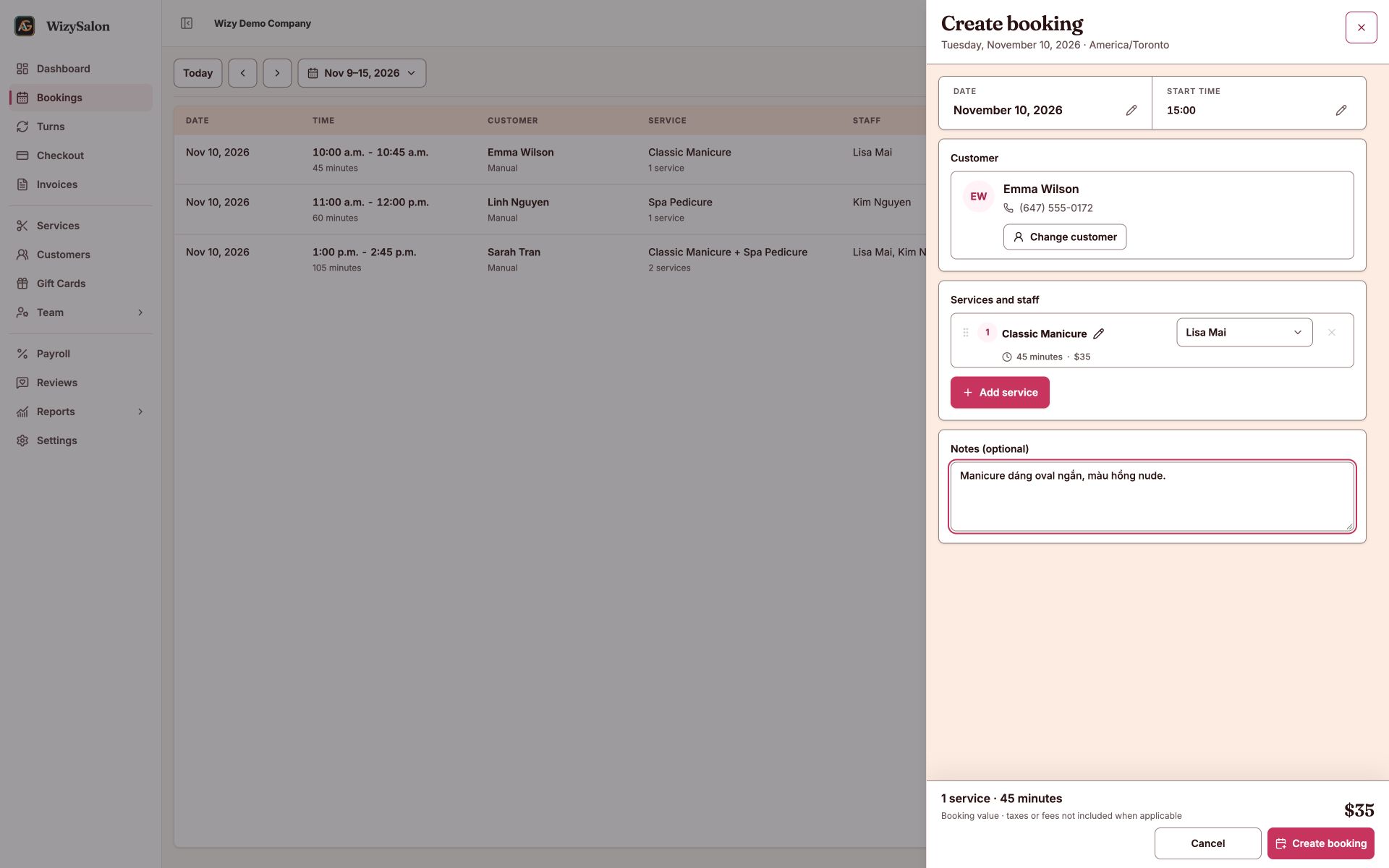
Figure 1. The booking form with customer, date, time, service, technician, and notes.