Choose the correct action
Cancel an appointment
1
Open the appointment
Open its details and choose Cancel appointment. Open the three-dot menu if needed.
2
Choose a reason
Select the appropriate reason: customer request, customer unavailable, salon schedule change, staff unavailable, duplicate booking, or created by mistake. If you choose Other, enter the reason.
3
Confirm and check
Check the appointment, then confirm cancellation. Check its Cancelled status. To keep it, close the dialog without confirming.
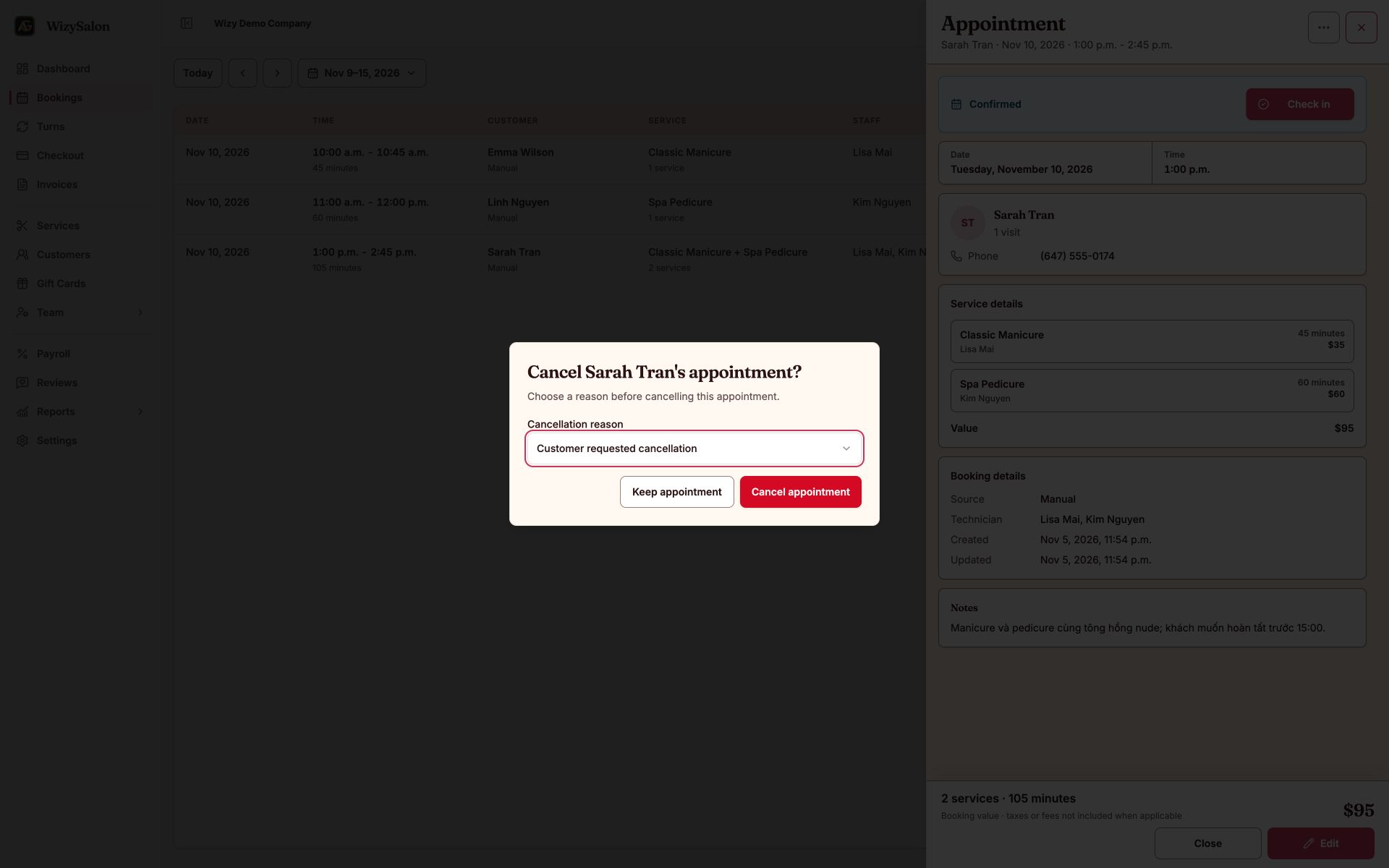
Figure 1. Choosing a reason before confirming cancellation.
Mark a no-show
- Open the appointment for the guest who did not arrive.
- Choose Mark as no-show in the appointment actions.
- Check the customer and time in the dialog.
- Confirm and check the No-show status.
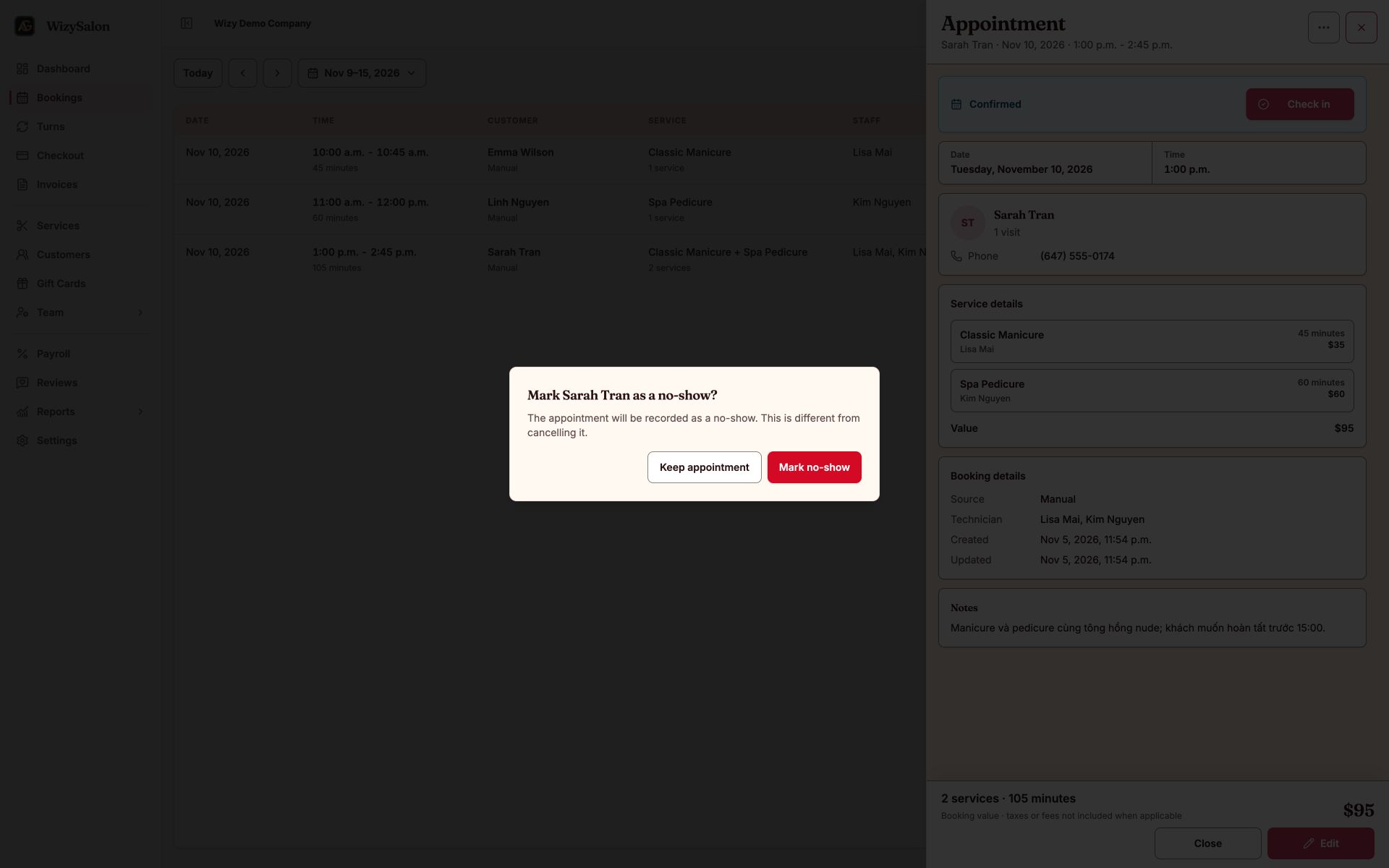
Figure 2. The confirmation dialog for marking a guest as a no-show.
A no-show and a cancellation represent different situations. Choose the correct action so the history reflects what happened.