When to use this guide
Use this when an online booking is waiting for the salon’s decision. If automatic confirmation is enabled, eligible appointments may already be Confirmed. Before you start: sign in as an Owner and check availability and technician qualifications for each service.Open a pending request
- Go to Bookings.
- Filter for new or pending requests if that filter is available.
- Open the request and check the customer, services, technician, and requested time.
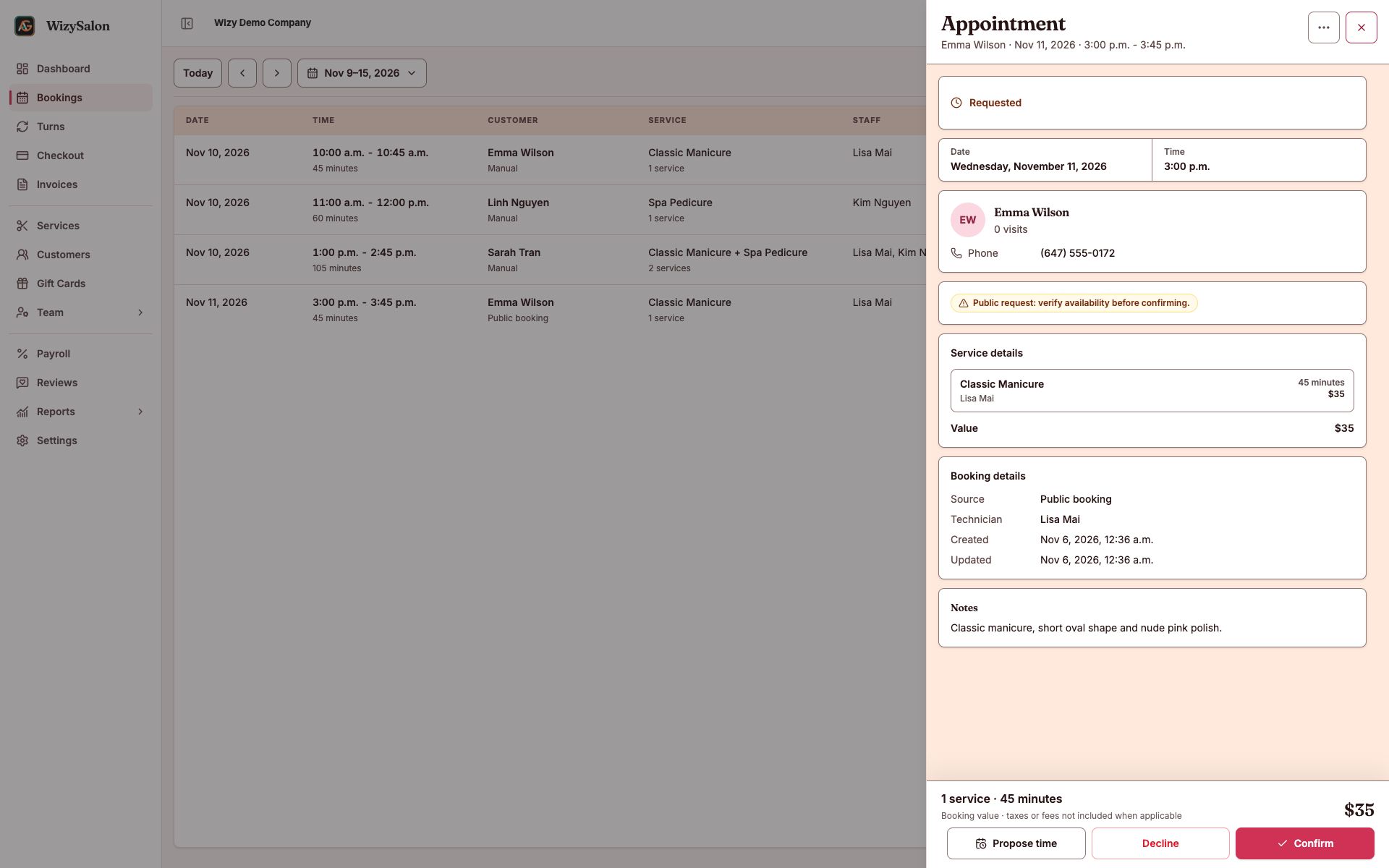
Figure 1. A pending request with Confirm, Propose time, and Decline actions.
Confirm the appointment
- Select Confirm.
- Check that the status changes to Confirmed.
- Review any SMS/email result: sent, queued, or failed.
Propose another time
- Select Propose time.
- Choose an available date and time. Minutes must end in 00, 15, 30, or 45.
- Review the details and select Send proposal.
Sending a proposal does not confirm the appointment. The request remains pending; follow up with the guest to agree on a time.
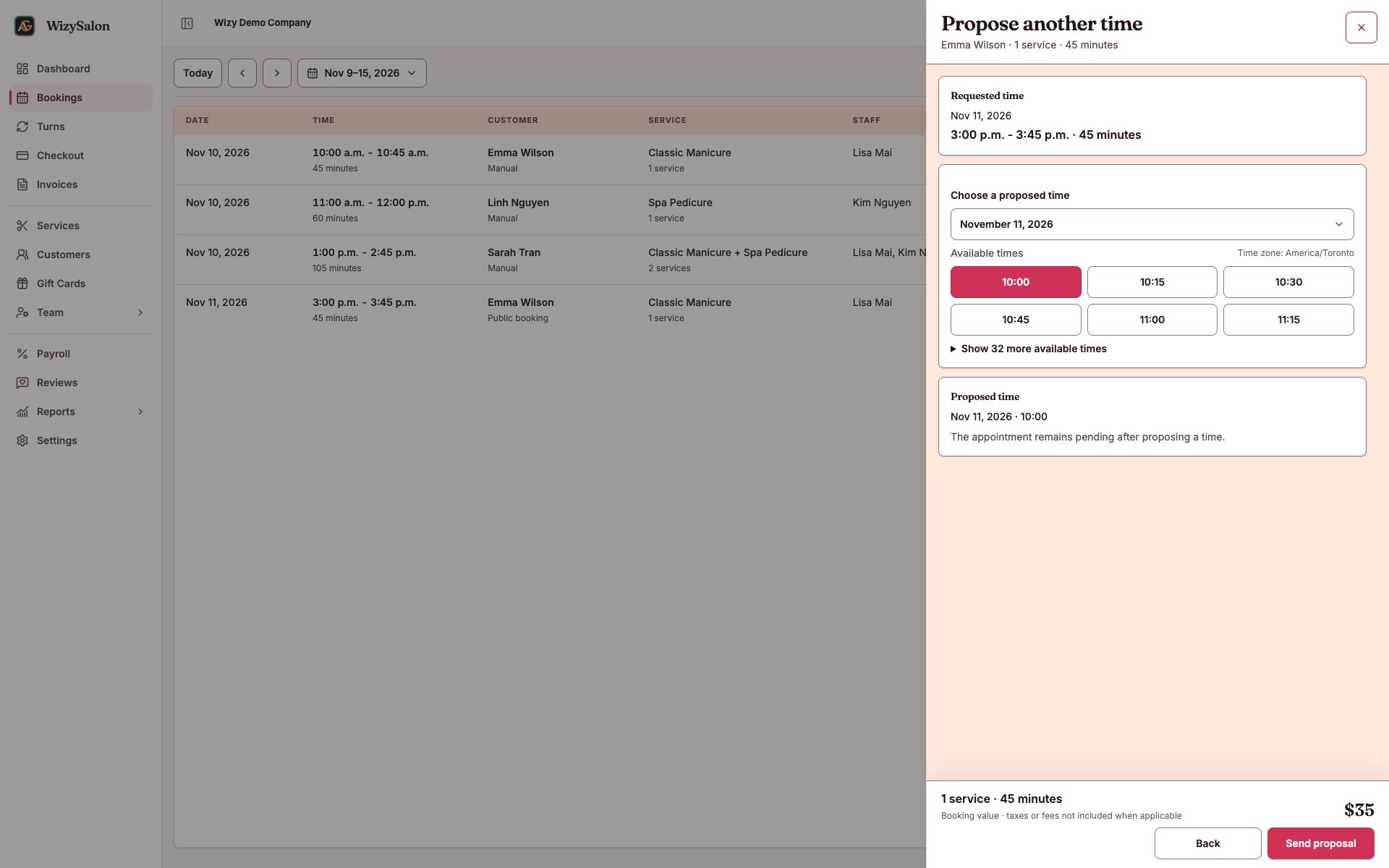
Figure 2. Choosing a new time in Propose another time.
Decline a request
- Select Decline.
- Check the customer and time in the confirmation dialog.
- Confirm only if the salon cannot accept this request. Close the dialog to keep it.
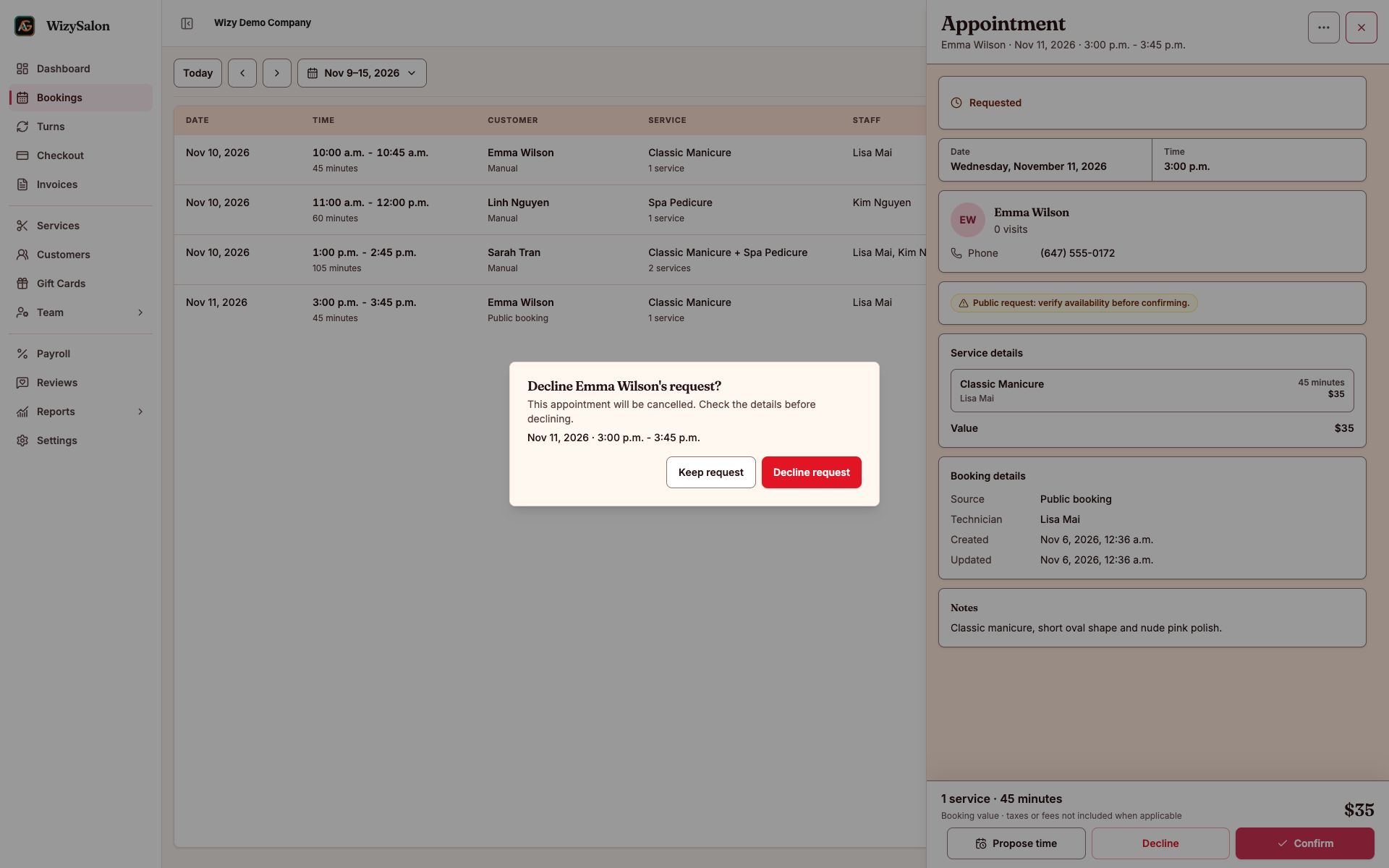
Figure 3. The confirmation dialog for declining an online request.