
Cannot find an appointment

  1. Check the salon workspace.
  2. Select All technicians.
  3. Move to the correct day or week.
  4. Clear search, status, and source filters.
  5. If data is stale or you are offline, reconnect and refresh.
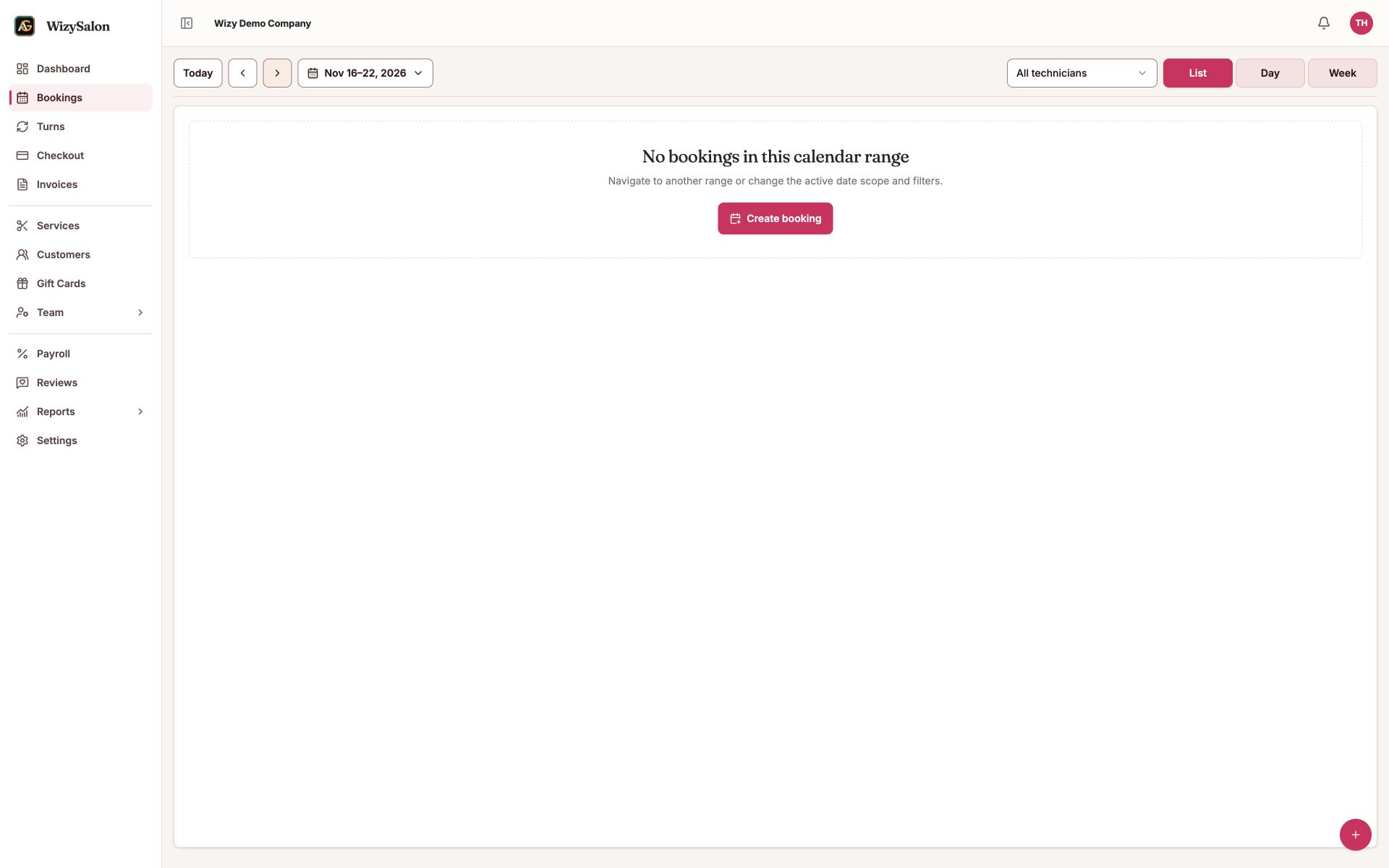
Empty list with date range and All technicians filter

Figure 1. No appointments in the selected date range.
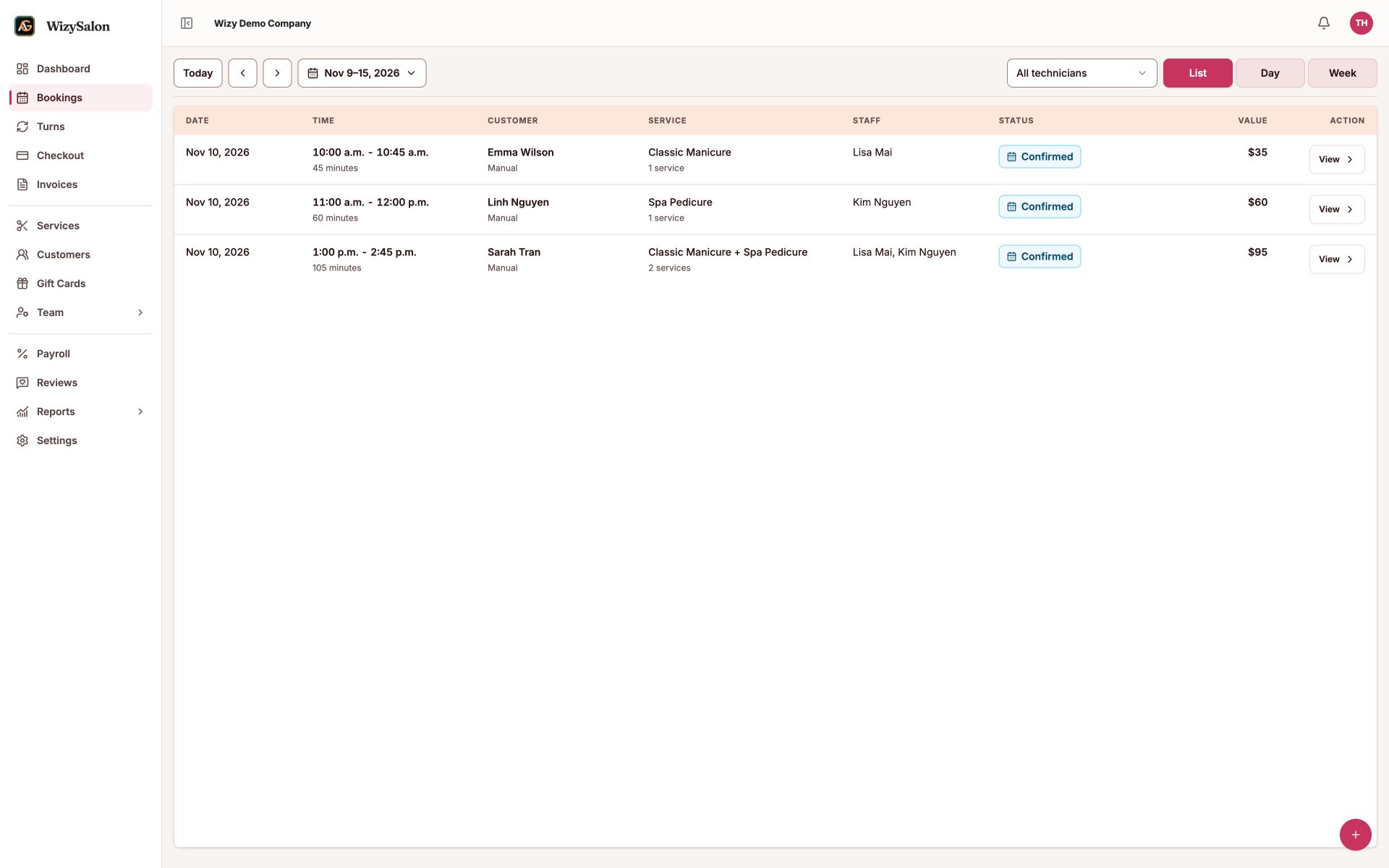
Three November 10 appointments in the correct week

Figure 2. Appointments appear after selecting the correct date range.

Cannot create or reschedule an appointment

Cannot edit date, time, or services

Date and time are locked after check-in. Services in progress or completed cannot be edited like services that have not started. Check each service and edit only what is allowed.

Booking saved but no SMS/email received

Open the appointment again and check its status. Review any delivery result; if needed, check booking message history in operations settings. A queued or failed message does not mean the booking was not created. Do not create another appointment just to resend a message.

Check-in result is uncertain

Reload the details and check Turns. If arrival was recorded but the guest is not in the queue, check what is missing; avoid another appointment or visit for the same guest.

Cannot proceed to checkout

Check each service: complete services actually performed and handle unperformed services according to the real situation. Checkout may remain unavailable while a service is unfinished.

When you need help

Record the appointment reference, date/time in the salon’s time zone, attempted action, and exact error. Include a screenshot when needed. Return to: Find and view appointments.